

EMX supports three display modes — Light, Dark, and Auto — giving you control over how the interface looks across the entire application.
Changing Your Display Mode
The display mode icon is located in the top navigation bar on the right side of the screen. The icon reflects your current mode: a sun for Light, a moon for Dark, and a half-circle for Auto.
Click the icon to open the menu and choose from:
-
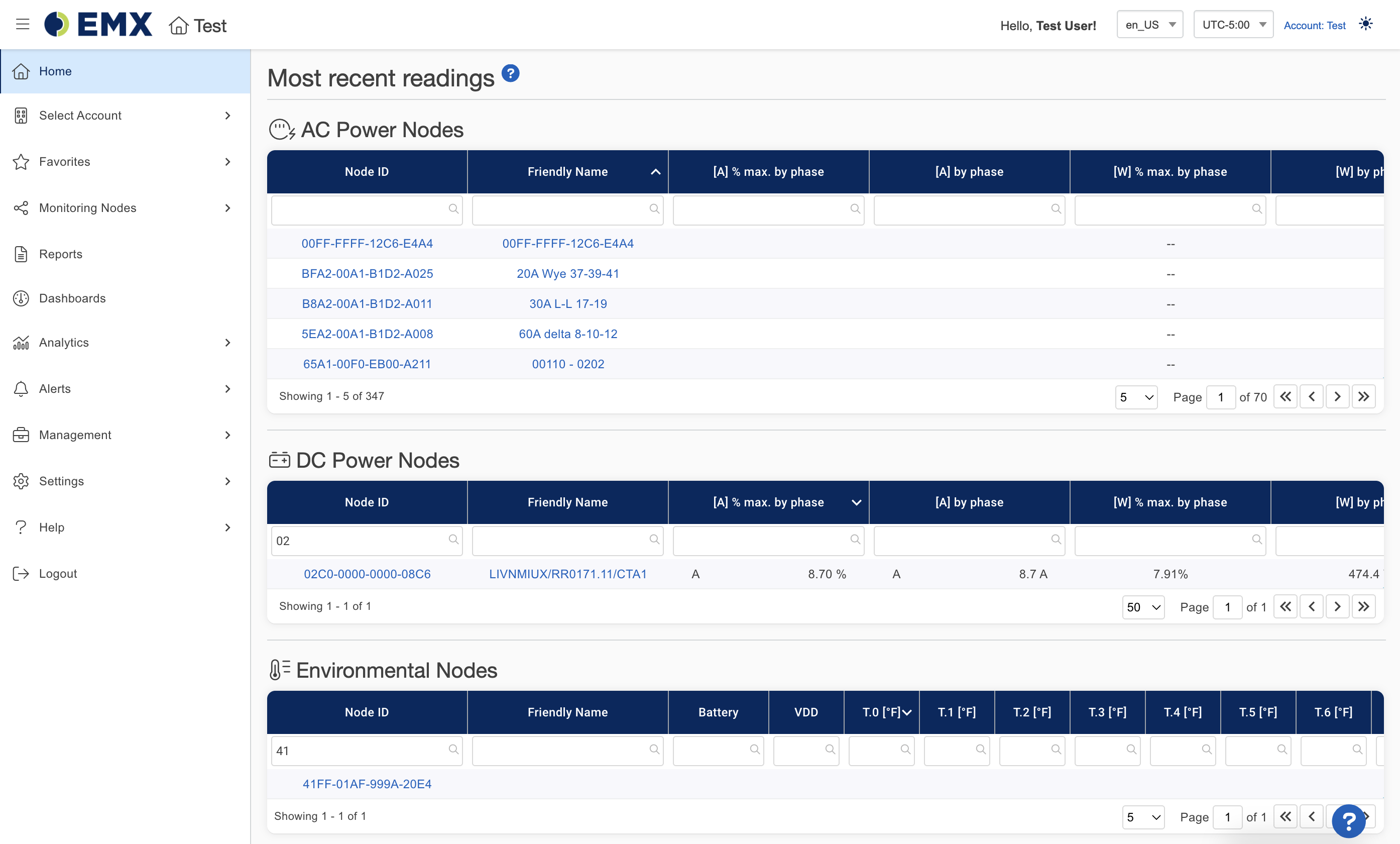
Light Mode — always displays EMX with a light background
-
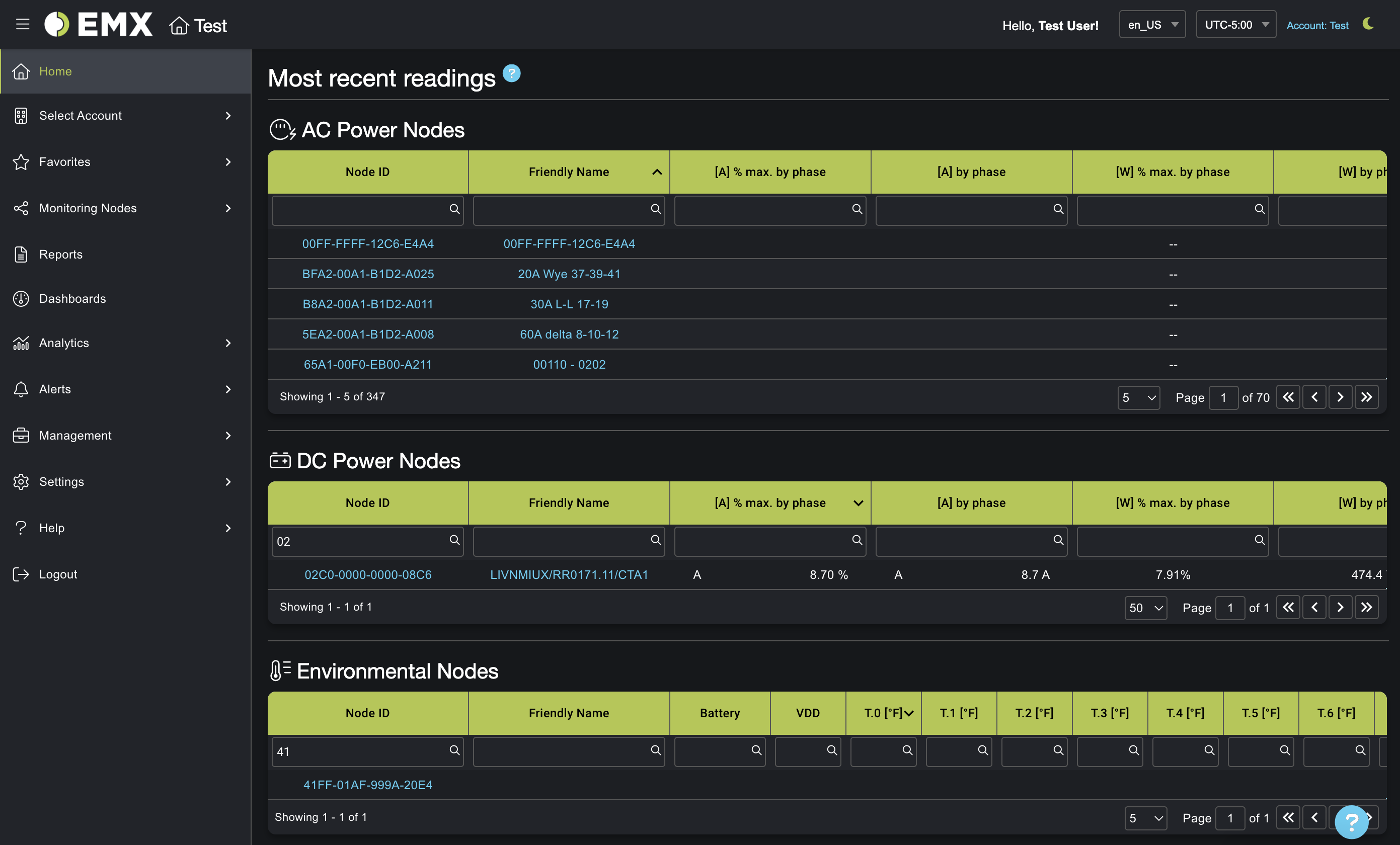
Dark Mode — always displays EMX with a dark background
-
Auto — follows your device or browser's theme preference automatically
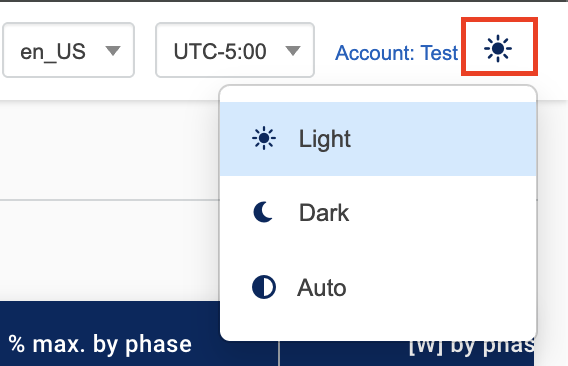
Your selection is saved and applied across all pages.
What Changes Between Modes
Switching modes affects the entire interface, including:
-
Page backgrounds, text, and borders
-
Navigation and sidebar
-
Tables, charts, and dashboards
-
Forms and modals
Auto Mode
Auto mode follows your browser's appearance setting. This usually matches your operating system's dark or light mode, but if you have configured your browser's appearance independently it will use that instead.
Per-Device Behavior
Your display mode preference is saved in your browser, so it does not sync across devices. If you use EMX on multiple devices or browsers, you may need to set your preferred mode on each one separately.
Display Modes and Custom Branding
If the account you are in has custom branding configured through Customize Interface, both your logo and brand colors are designed to work with either mode. Logos can be uploaded separately for light and dark backgrounds, and brand colors can be set independently for each mode — so your branding looks correct no matter which display mode you or your users prefer.
For more on customizing your account's branding, see Customize Interface.