Access to Translations requires the appropriate user permissions.
If you do not see this feature or cannot perform certain actions, it may be due to your current permission level. Please contact your Packet Power representative to discuss access options or potential system upgrades.
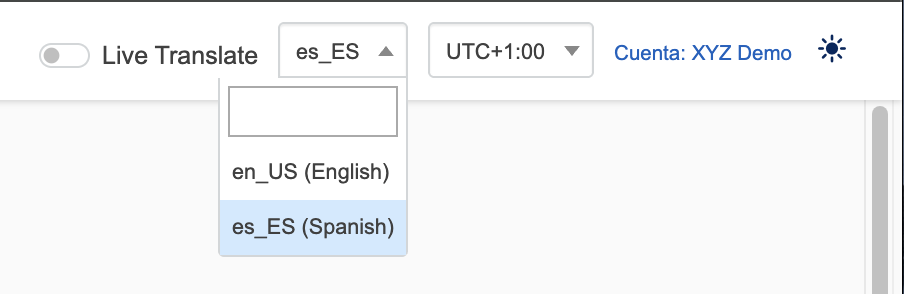
The translations feature allows you to add translations or modify the translations across EMX for your selected locale. Translation editing is not available for our default Locale: en_US. To edit translations for another locale, first make sure you select your locale in the top right of the header.
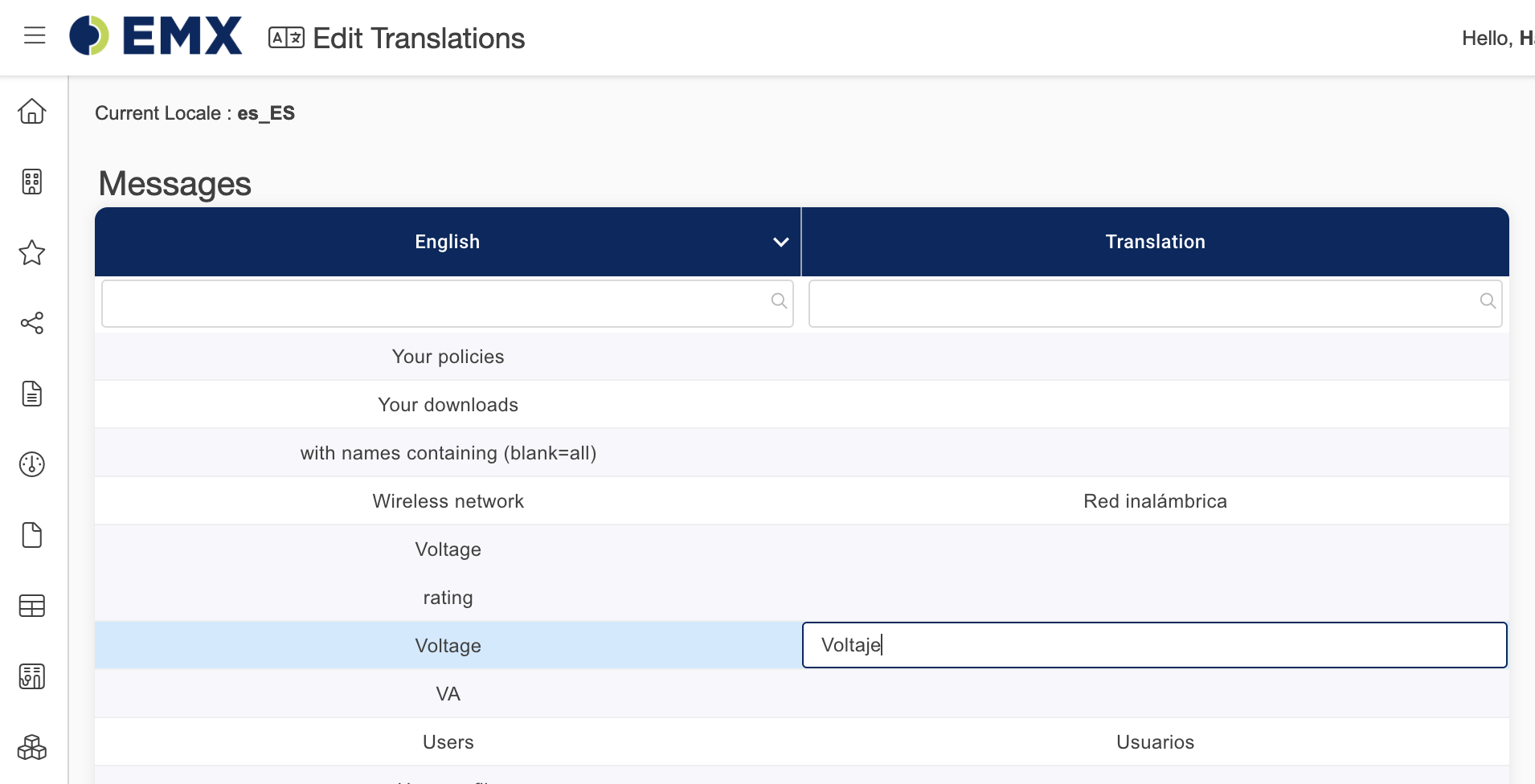
You can View and Edit translations directly in the Messages Table by clicking on a Translation Cell.
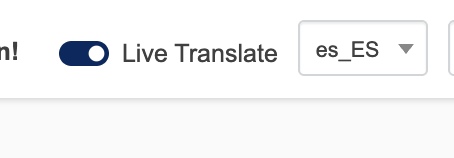
If you would like to translate other elements across EMX, you can turn on Live Translating by turning the “Live Translate” toggle on, on the top right of the header, next to your selected locale.
This will then highlight all translatable text and elements on your page. Text in the color blue have been set with a translation and text in the color red have not been set yet. To add or edit a translation click on the highlighted text.
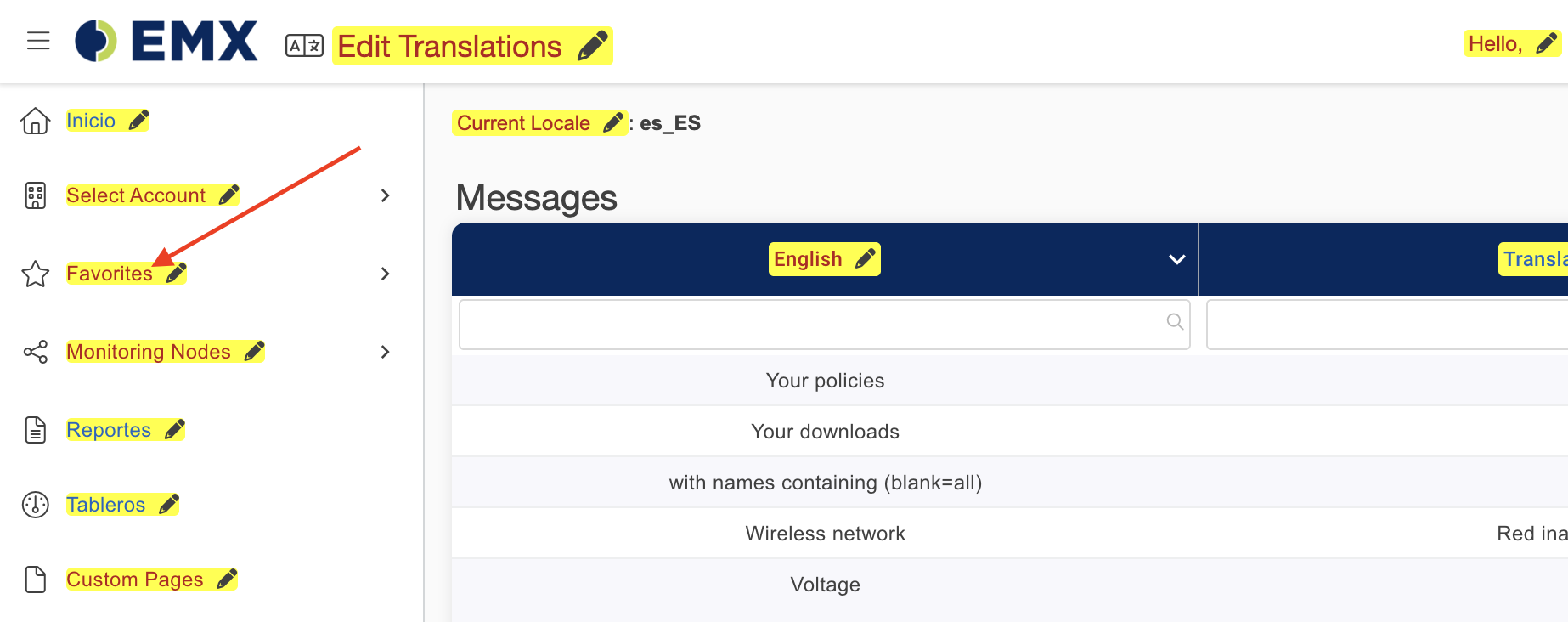
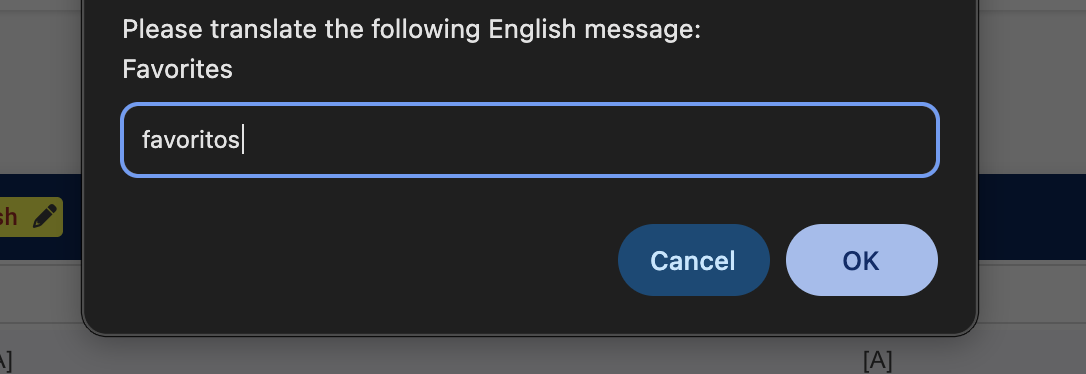
This will open up a modal when you can add your translation for the message.