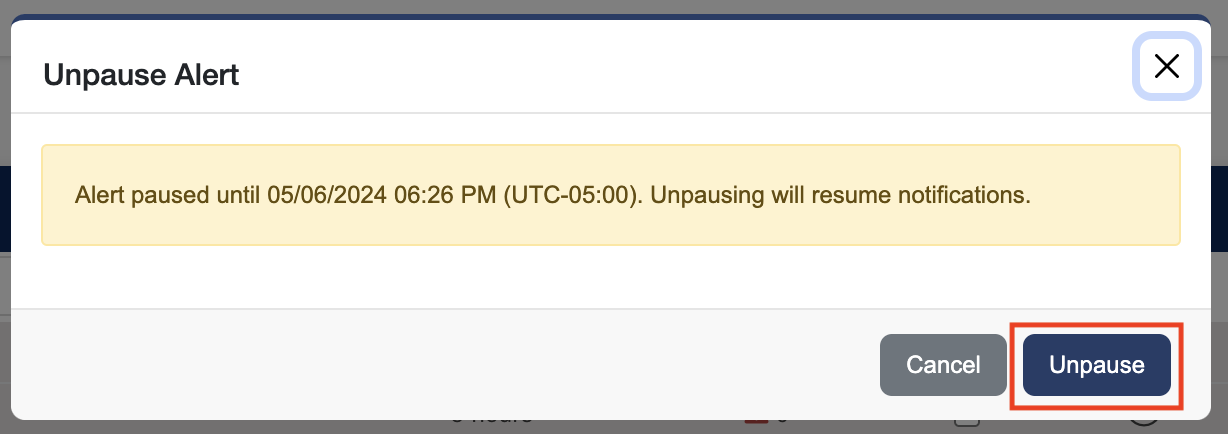
To edit an alert, select the alert, open the Actions dropdown, and click Edit. This opens the Alert Wizard, where you can update the alert’s configuration. The editing process follows the same steps as creating an alert. For step-by-step instructions, see Creating Node Alerts.
Turning Alerts On and Off
-
Navigate to Alerts → Node Alerts.
-
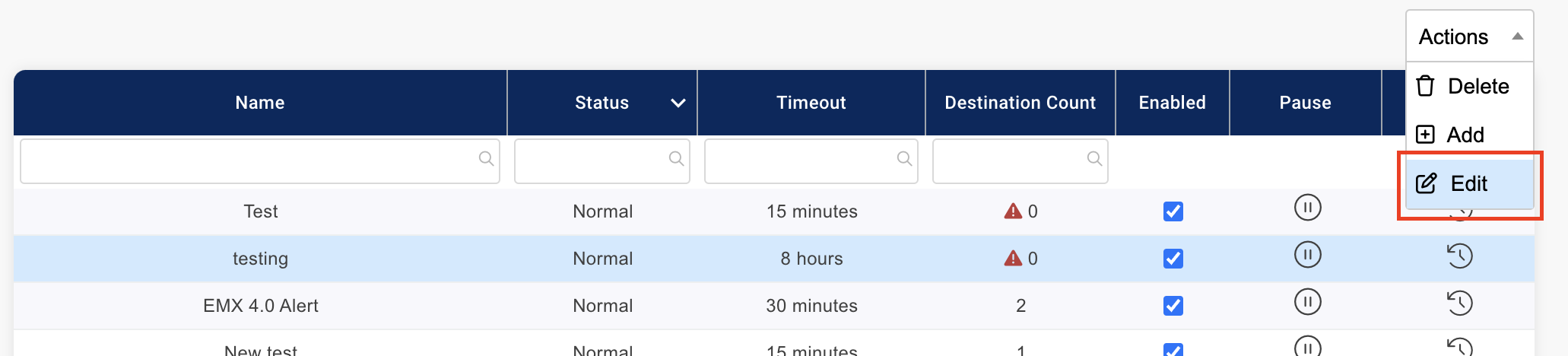
Find the applicable alert and click the check box in the Enabled column to turn the alert on or clear the check box to turn it off.
Pausing and Unpausing Alerts
Pausing an Alert:
-
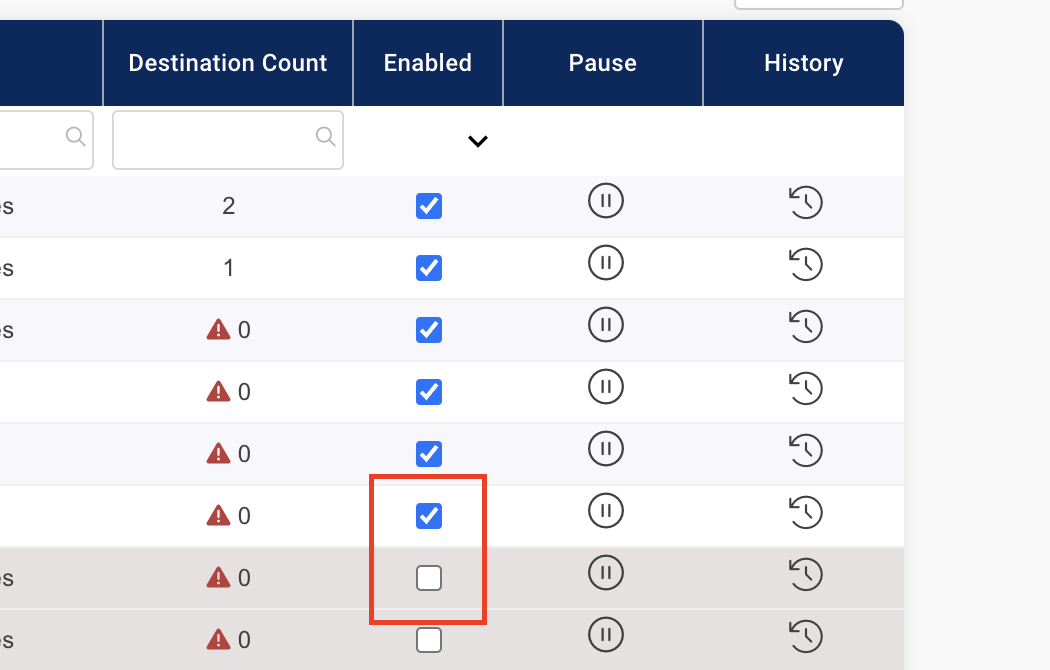
Click the Pause Icon in the Pause column.
-
Then set the amount of time you want your alert paused for and click Submit.
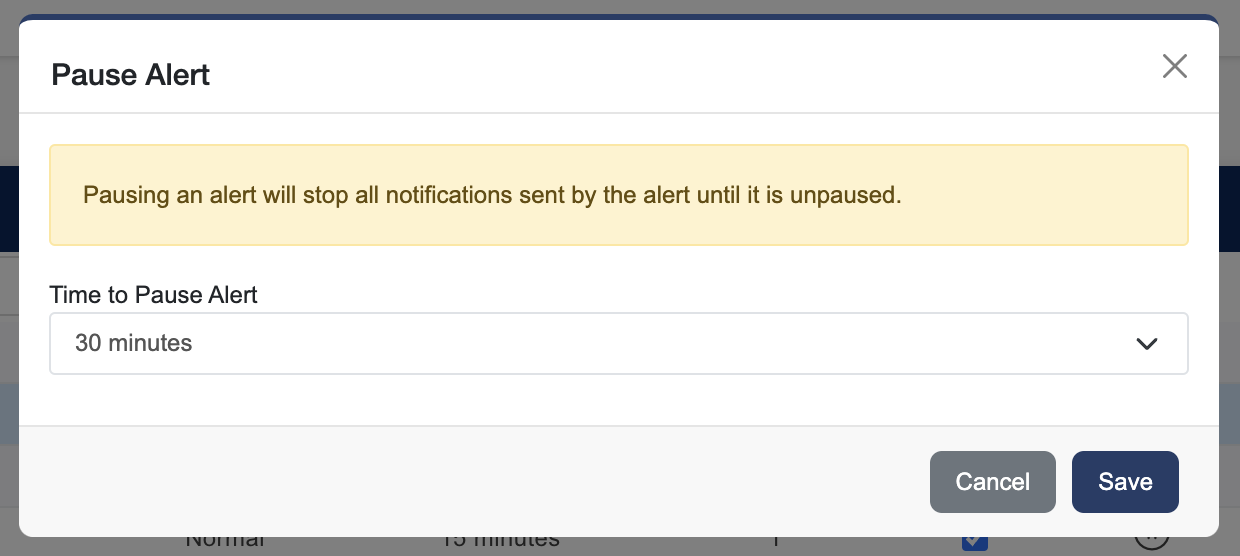
Unpausing an Alert:
-
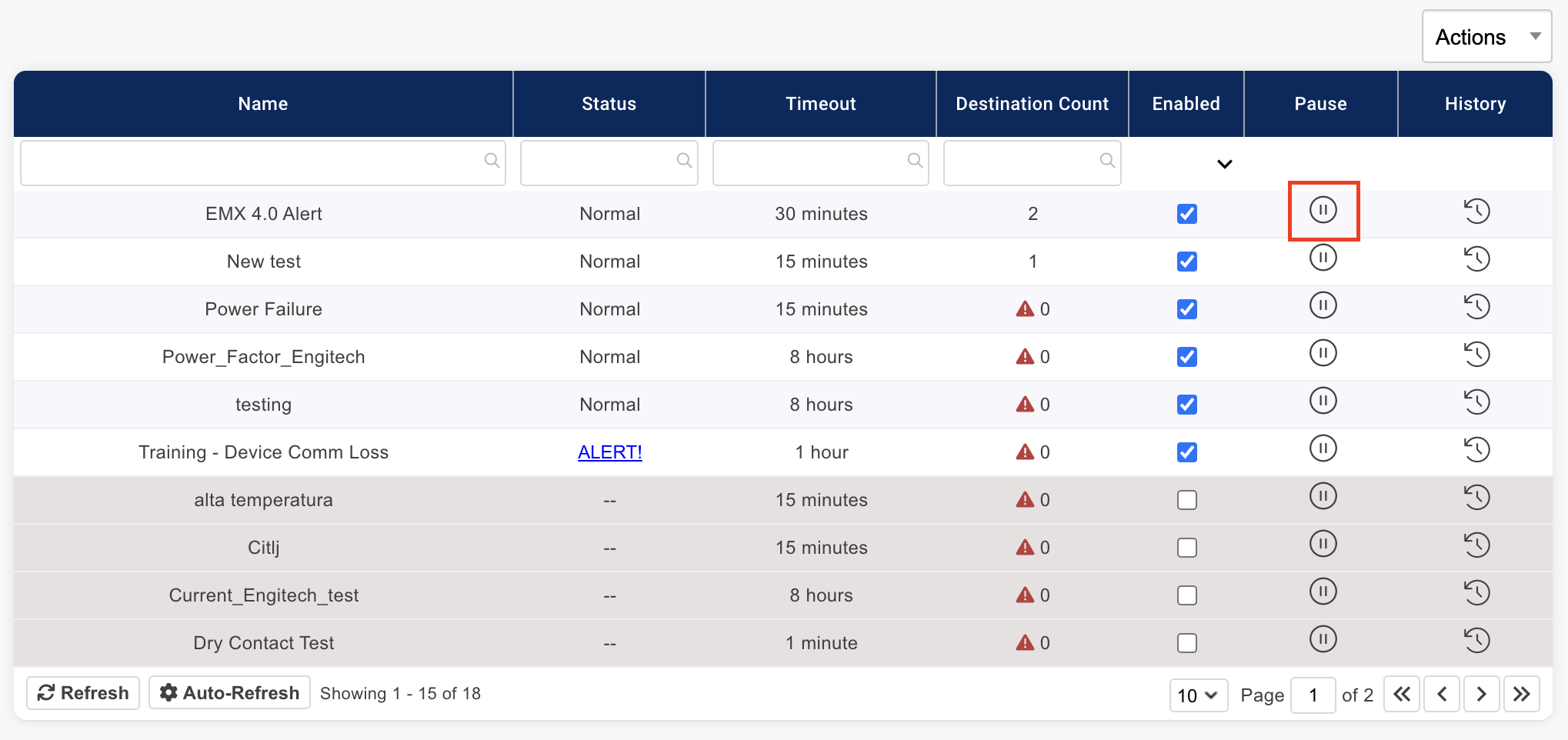
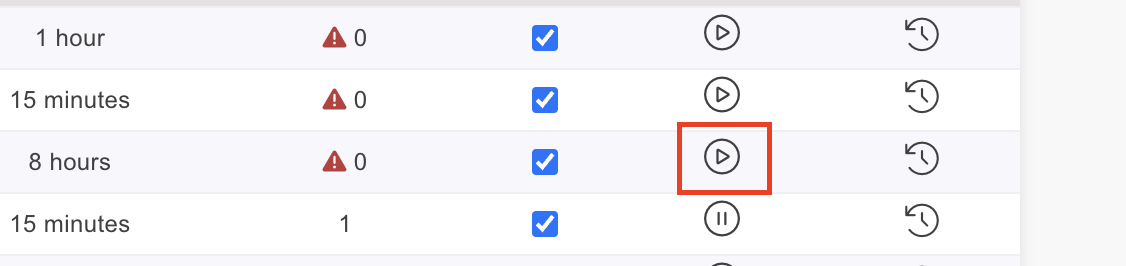
Click the Play Icon in the Pause column.
-
Then click Unpause.