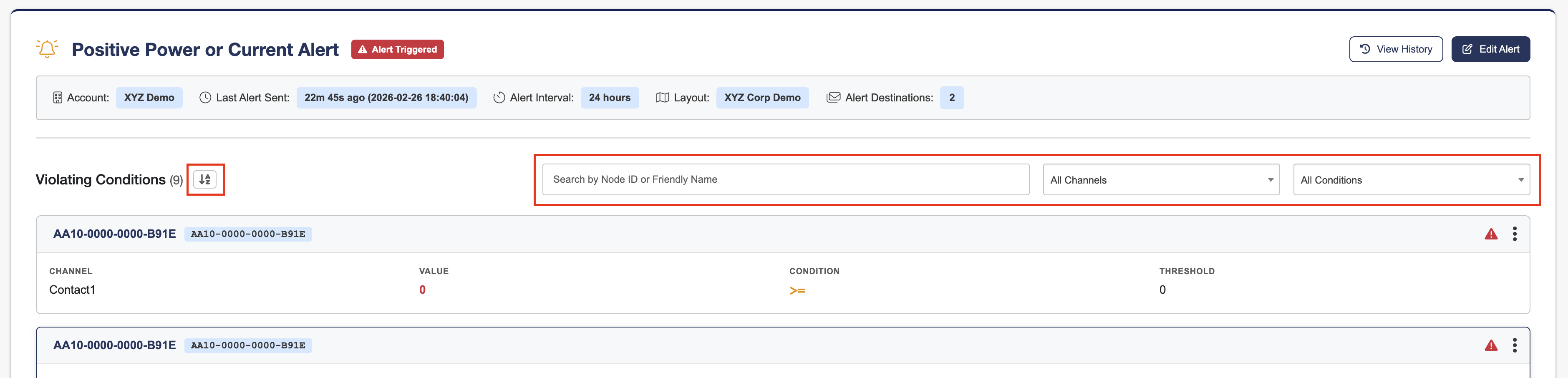
Node Alerts notify you when monitored node values violate specific alert conditions. The Alert Details page allows you to view the alerts current status, review violating conditions, and access alert settings.
To view Node Alert details:
-
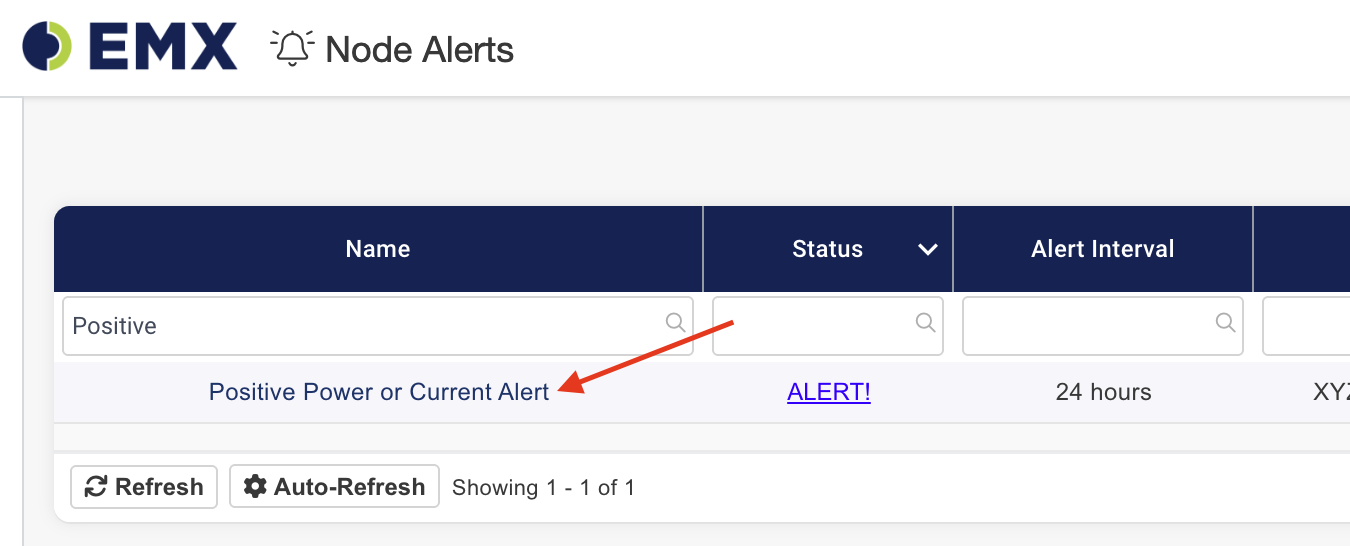
Navigate to Alerts → Node Alerts.
-
Click on the name of the alert you want to view.
Understanding Alert Status
At the top of the page, you will see the alert name and its current status.
The alert status indicates whether any monitored conditions are currently violated:
-
Alert Triggered — One or more conditions are currently violated, and the alert is active.
-
Alert Not Triggered — All monitored values are within the configured thresholds.
-
Alert Disabled — The alert is turned off and is not evaluating conditions or sending notifications.
This status provides a quick overview of the alert’s current state.

Viewing Alert Information
Below the alert name and status, you can view additional alert information:
-
Last Alert Sent — The most recent time a notification was sent
-
Alert Interval — How frequently the alert checks conditions and sends notifications if triggered.
-
Layout — The assigned location or layout, if configured
-
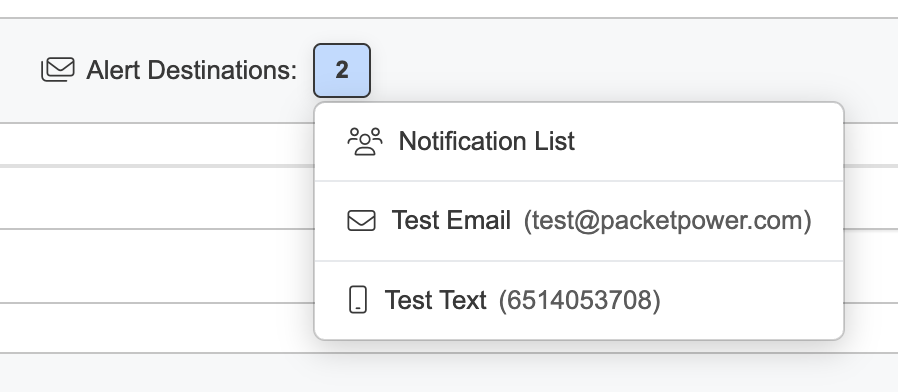
Alert Destinations — The number of configured notification destinations
-
Click Alert Destinations to expand and view all assigned destinations.
-
In the top-right corner of the page, you can also:
-
Click View History to view past alert notifications
-
Click Edit Alert to modify the alert configuration. For more information, see Editing Node Alerts.
Viewing Violating Conditions
If the alert has a status of triggered, the Violating Conditions section will display all node conditions that are currently triggering the alert. A condition is considered violated when the node’s current value meets the alert trigger criteria.
Each condition includes:
-
Node Name and ID — The node being monitored
-
Channel — The specific measurement being evaluated (such as Power or PowerFactorA)
-
Value — The node’s most recent value for the channel
-
Condition — The comparison rule (for example, ≥, ≤, =, or ≠)
-
Threshold — The configured limit for the alert condition

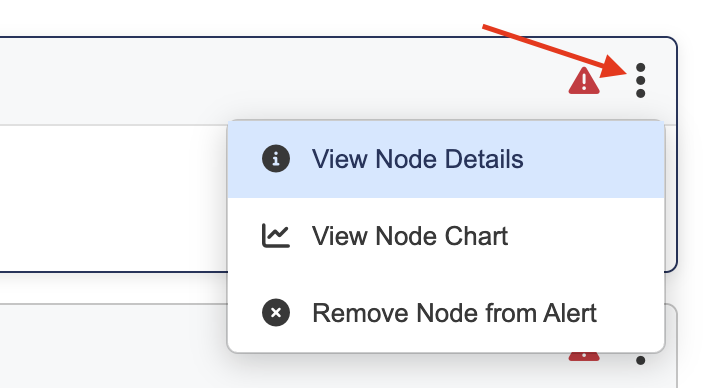
Each violating condition includes an options menu (three dots) on the right side of the condition card. Click this menu to access additional actions:
-
View the node’s detail page
-
View a chart of the violating node and channel
-
Remove the node from the alert
These options allow you to investigate or remove the node from the alert.
Searching and Filtering Violations
If the alert contains many violating conditions, you can use the available tools to locate specific conditions:
-
Search bar — Search by node ID or friendly name
-
Channel filter — Show only conditions for a specific channel
-
Condition filter — Show conditions based on the comparison type
-
Sort button — Sort the list alphabetically
These tools help you quickly identify which nodes are currently triggering the alert.