

Equipment items are used to represent your physical assets/equipment you are monitoring. Like cabinets, PDUs, data halls, server racks etc. Every equipment item needs to be defined as an Equipment Type. There are several basic equipment types already defined for you, including Cabinets, ATS and PDU.
Navigating to Equipment Types
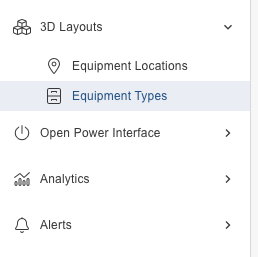
Go to 3D Layouts → Equipment Types.
Adding an Equipment Type
There are four steps to creating a new equipment type:
-
Name and Icon
-
Tags and Metrics
-
3D View
-
Preview and Save
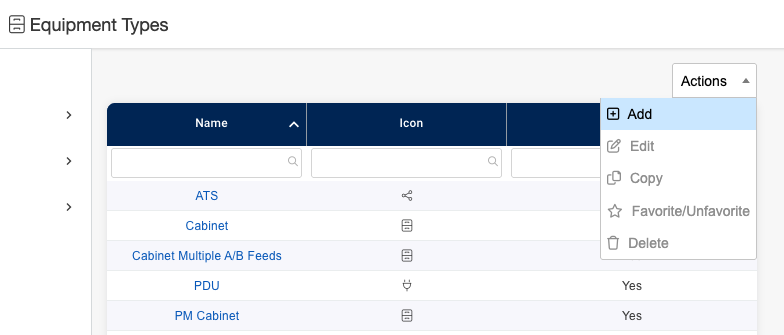
Use the Action Drop down to add a new Equipment Type.
Step 1: Name and Icon
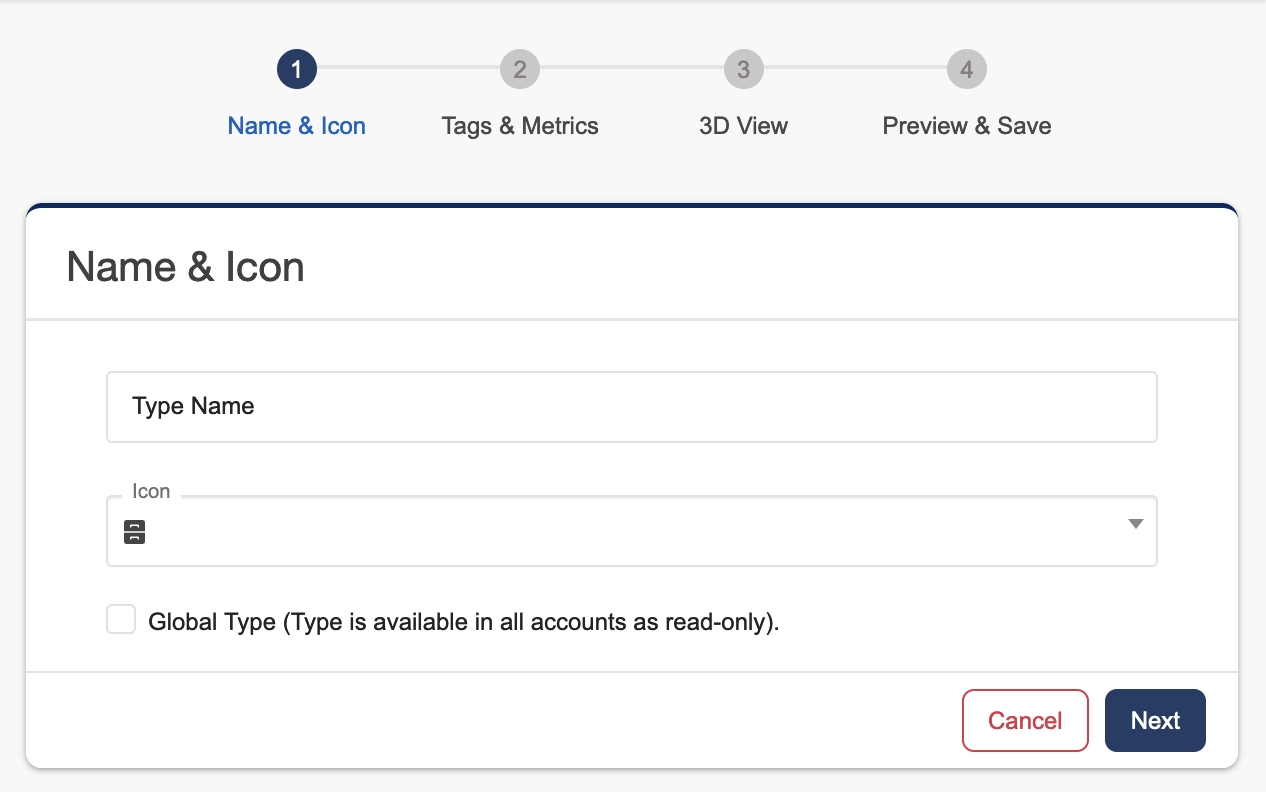
Here you can set the equipment type name and icon to represent it.
Step 2: Tags and Metrics
-
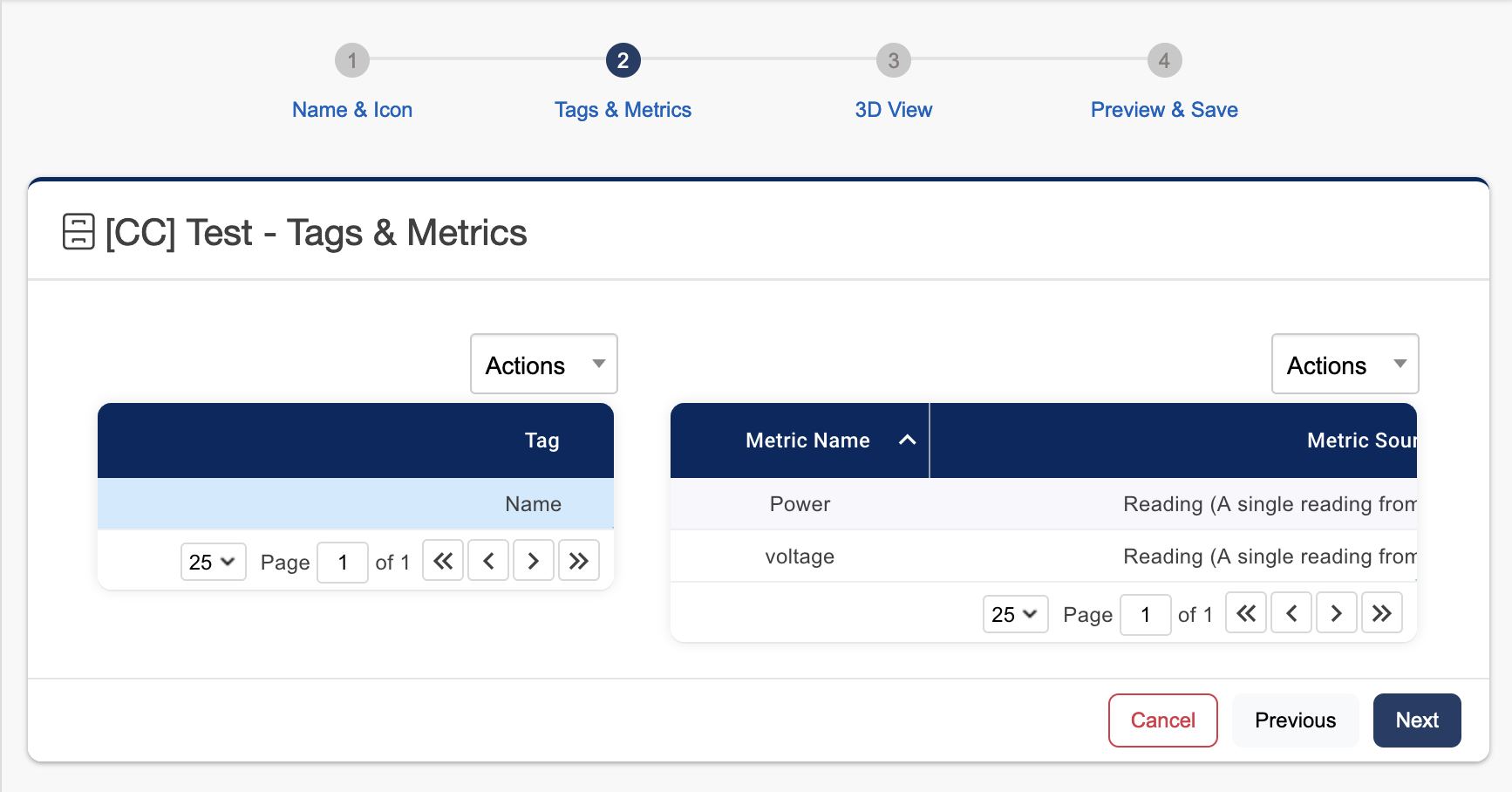
Tags are textual information that provides metadata for your equipment. They are manually entered for each piece of equipment of this type. By default each equipment type contains a “Name” attribute by default. An example of other tags you might add include serial number, building number, room etc.
-
Metrics are reading data that can be pulled from individual nodes or calculated from other metrics. As shown below, we have defined a Power and Voltage reading metric.
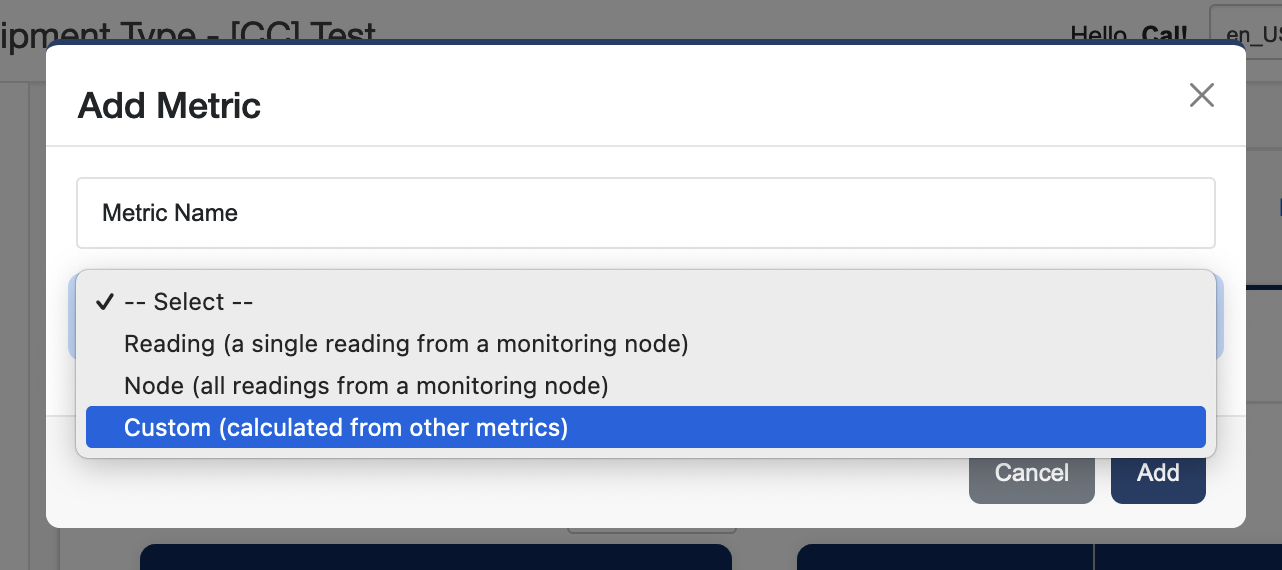
If you choose a custom metric, you will be prompted to select a calculation to perform on two other reading metrics.
Step 3: 3D View
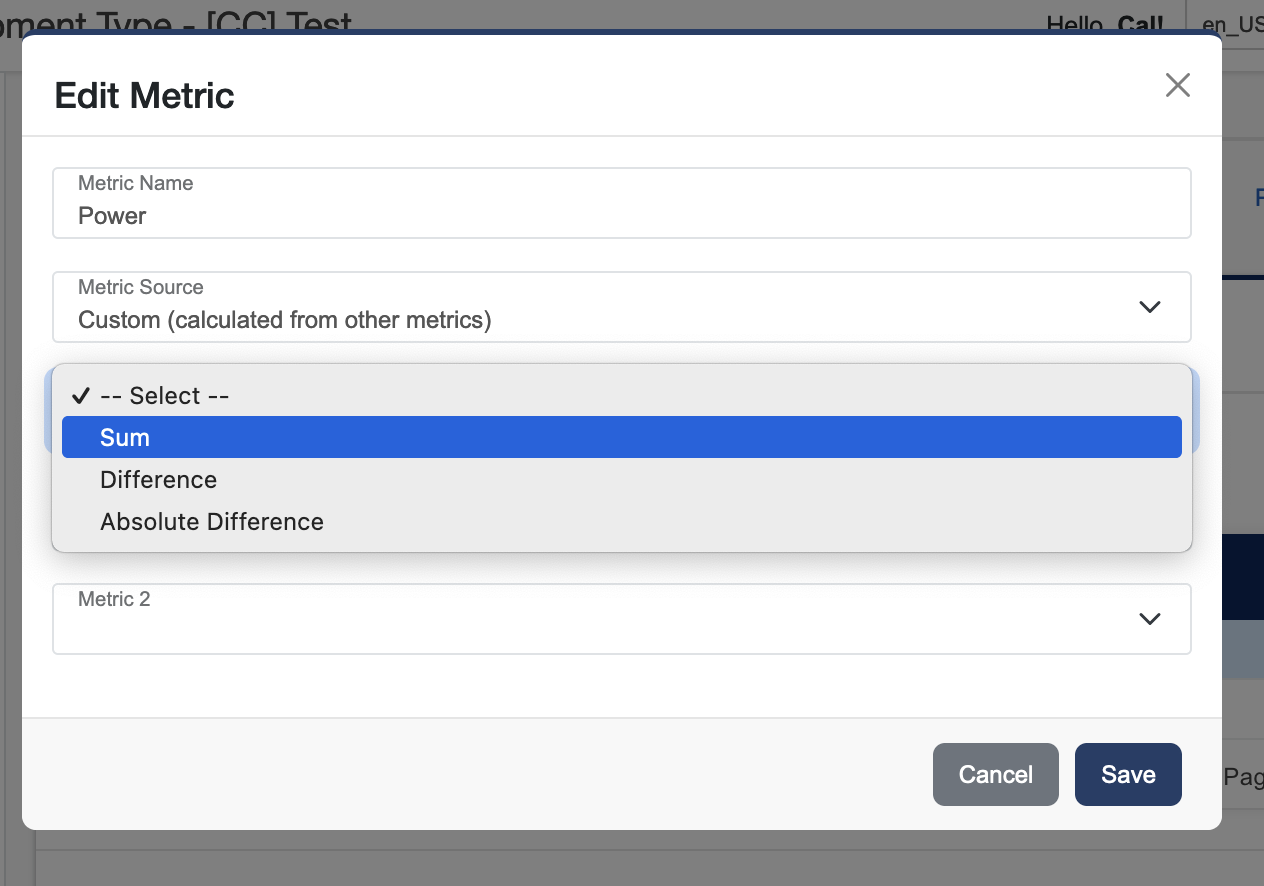
After creating your desired tags and metrics, you can then choose how they will appear on the 3D view of your equipment. This is done by dragging your tags/metric onto the desired projected face. Here we will display the Name and Power on the top face, and the Power and Voltage on the front.
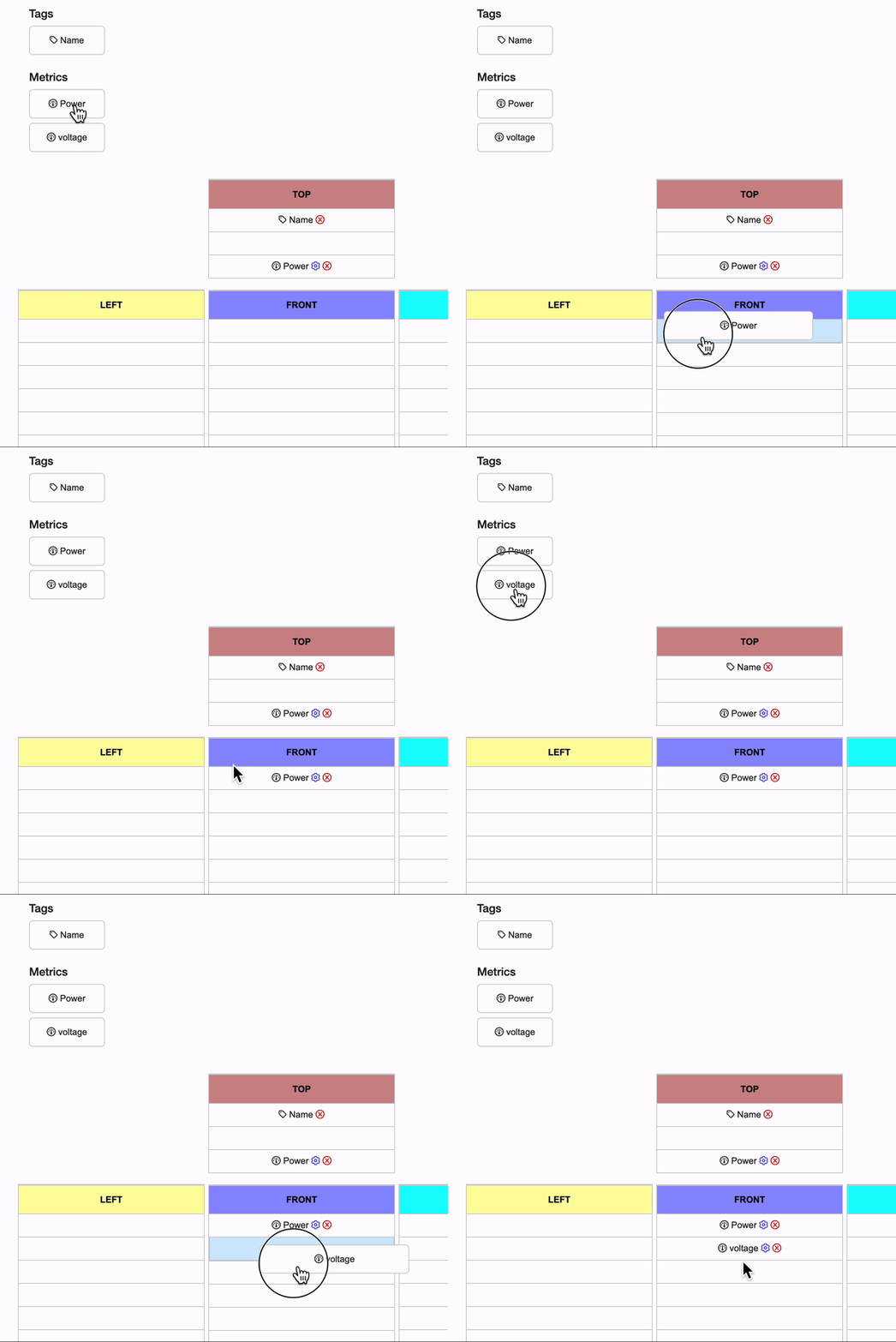
If you scroll down you will see a rotatable preview of your equipment in its 3D space.
.gif?cb=dc05c9cdede1edb6d2bebd0bb2f00fcb)
Step 4: Preview and Save
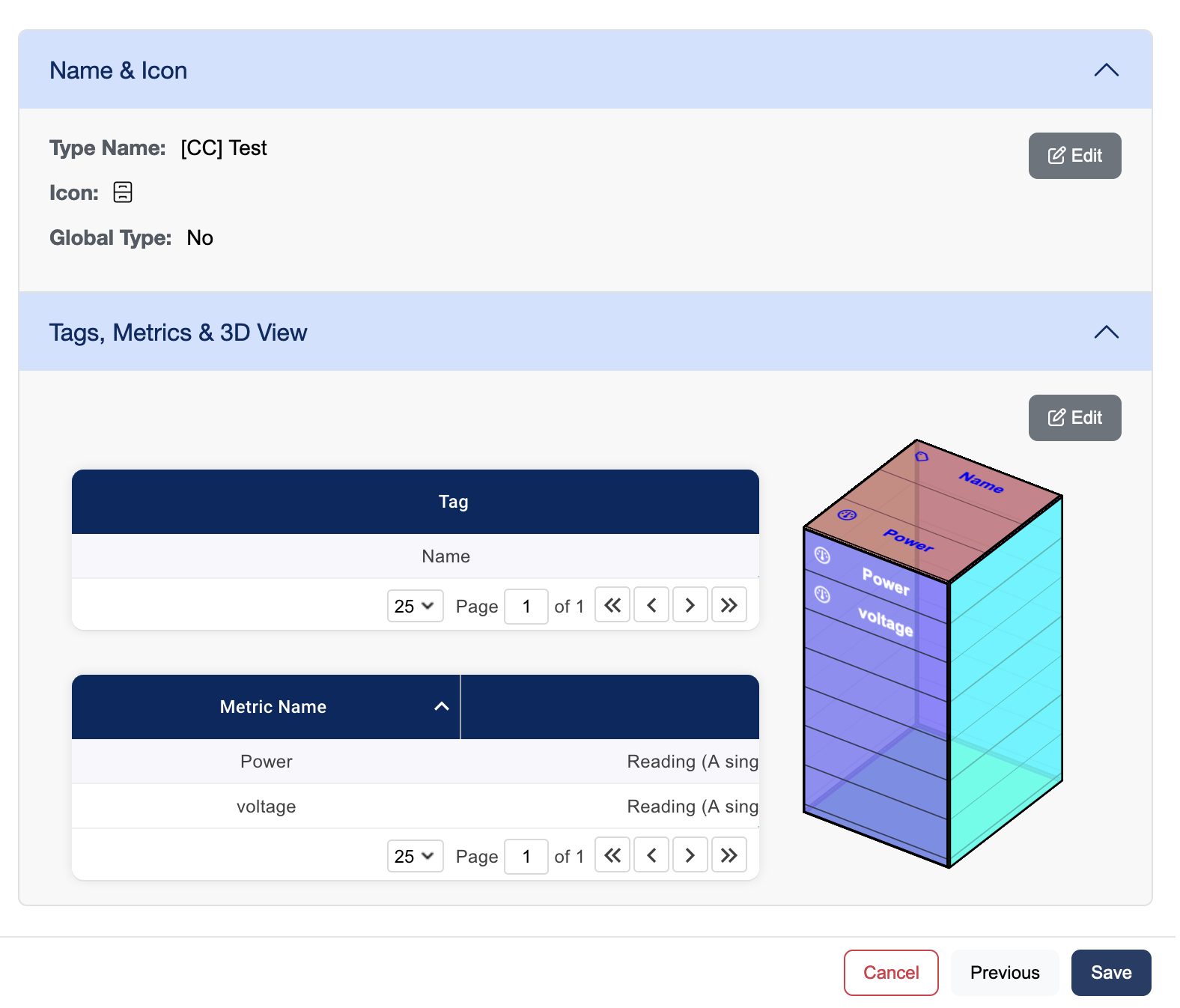
Once you are satisfied with the layout of your tags and metrics on the 3D Projection, you can review your equipment type prior to saving it.
Adding Equipment
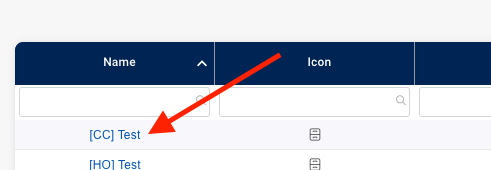
To access a list of all your equipment for a certain equipment type you can click on the equipment types Name.
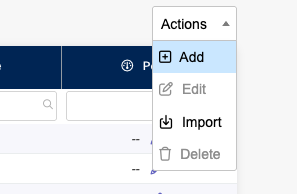
Click Add in the actions drop down.
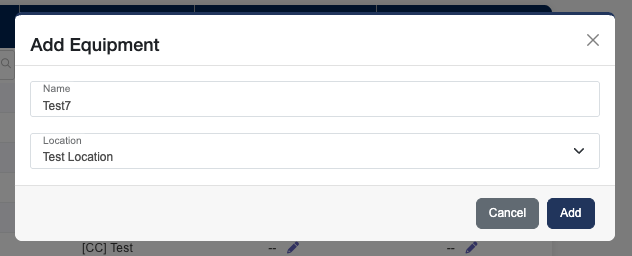
Add a Name for your equipment, fill out all other fields, and optionally assign your equipment to an Equipment Location. For more information on Equipment Locations visit: Equipment Locations. Then click Add.
You can edit an equipment metric by clicking on the edit pencil icon in the table. For node type metrics, you will be prompted to select a guid. For reading types, you will need to select a source node and a channel to display. Custom metrics are defined from other metrics and are not editable.
Once a metric is defined, you can edit or delete it by hovering your mouse over the existing value.
.gif?cb=1f75df1ed798a49a1c740f578d0eb752)
Importing Equipment
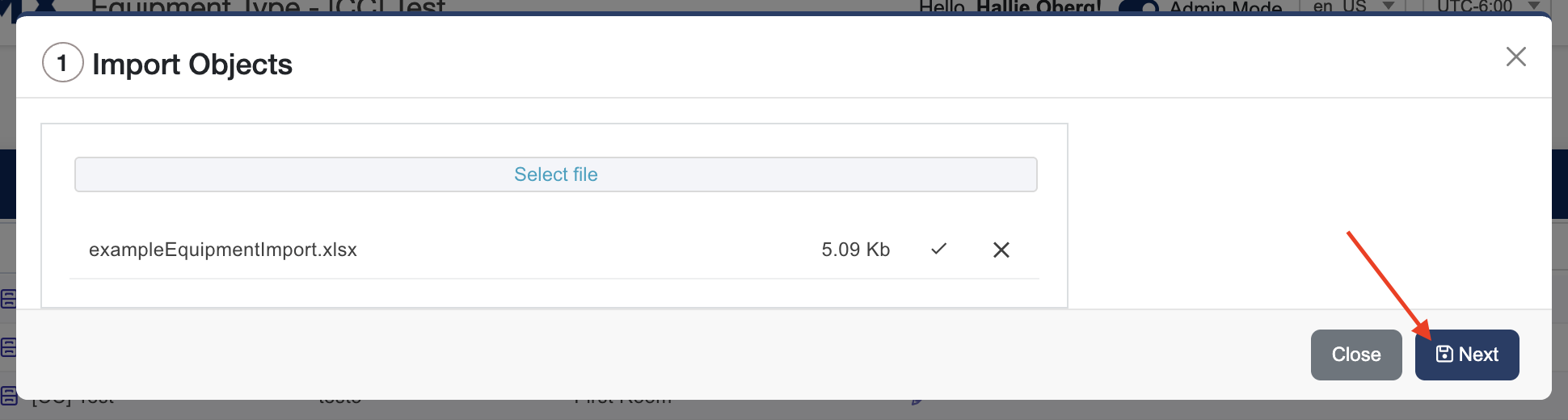
Step 1: Upload your file
-
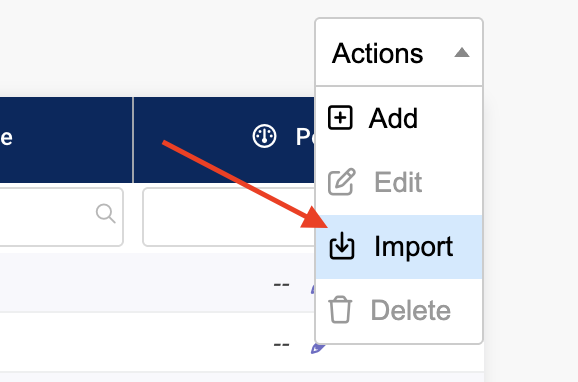
Click Import in the actions dropdown.
-
Click Select file and choose your import file.
Supported file types: Excel, CSV, JSON -
Click Next.
Step 2: Map columns
-
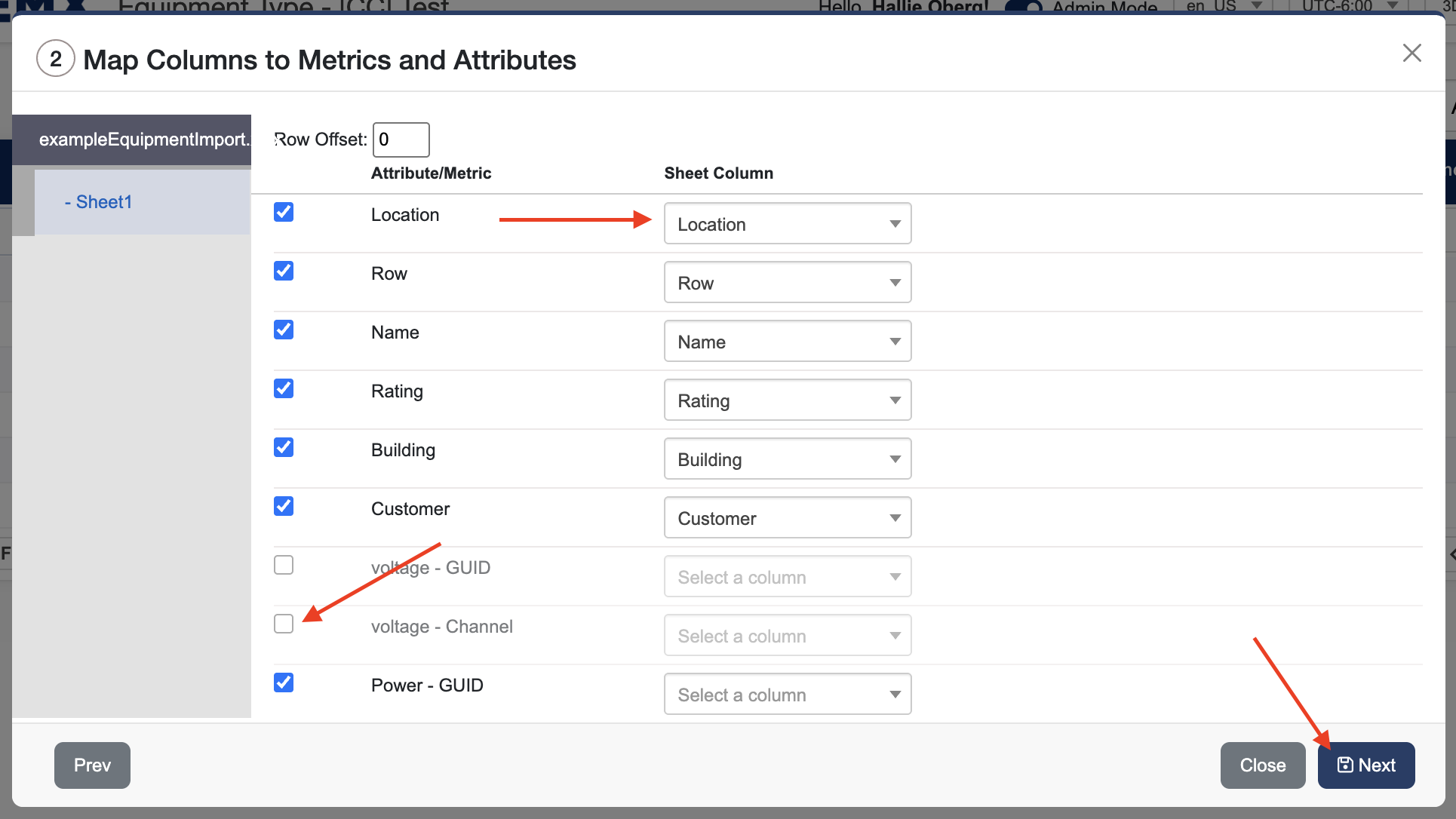
Select which column in your file contains the equipment Name (required).
-
Map any additional columns to equipment tags or metrics (optional).
-
Uncheck any columns you don’t want to import.
-
If your file includes extra header rows at the top, use the Row Offset option to skip them during import.
-
Click Next.
Step 3: Preview the import
-
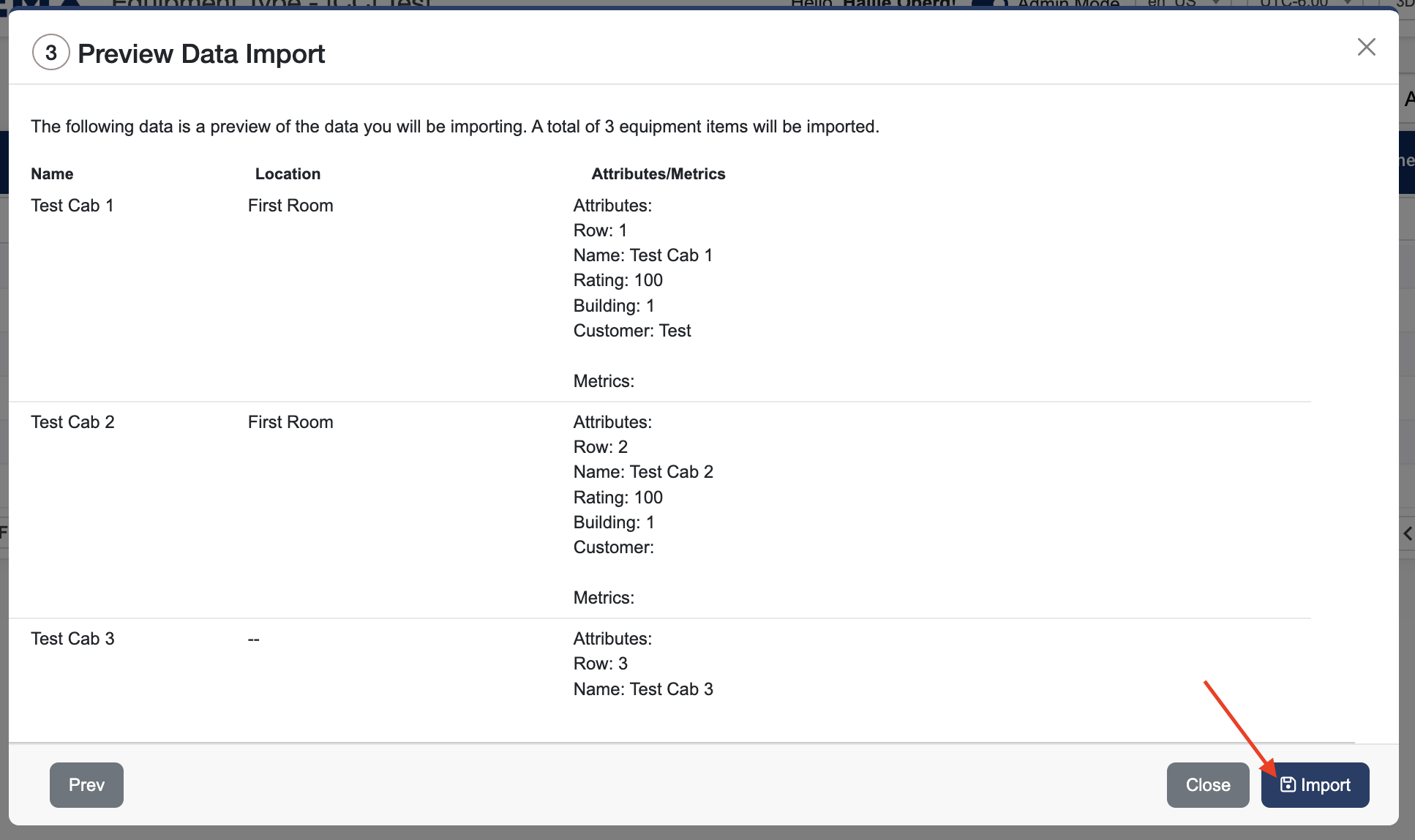
Review the data to make sure everything looks correct.
-
Confirm how many equipment items will be imported.
-
Click Import.
Step 4: Review results
-
You’ll see a confirmation showing how many items were successfully imported.
-
Click Start Over to import another file.

File preparation tips
To ensure a successful import, make sure your file:
-
Has column headers in the first row (for example: Name, Location, Serial Number). The system will automatically match columns with the same names where possible.
-
Contains one row per piece of equipment
-
Includes at least a Name column (required)